> ## Documentation Index
> Fetch the complete documentation index at: https://statsig-4b2ff144-mintlify-add-local-eval-country-note-96362.mintlify.site/llms.txt
> Use this file to discover all available pages before exploring further.
# Slack Notifications
> The Statsig Slack integration lets you receive updates where your team already works. You can connect Slack to get **project-level**, **team-level**, or **personal notifications**.
Depending on your organization’s Slack settings, you may need help from a Slack Admin to complete setup.
***
Statsig's Slack integration seamlessly connects your experimentation platform with your team's communication hub. By enabling this integration, you can receive real-time updates and alerts directly in your Slack workspace. Stay informed about critical changes to your feature gates, experiments, and dynamic configs without constantly monitoring the Statsig console or the Statsig operational health [status page](https://status.statsig.com).
## Setting Up Slack
**Step 1:** From your Statsig Console, go to **Statsig Settings** -> **[Integrations](https://console.statsig.com/integrations)**.
**Step 2:** Select Slack and click **+ Add Connection**.
**Step 3:** Allow the Statsig app to connect to your Slack workspace and Slack channel where you would like to receive Statsig's notifications.
***
## Product Notifications
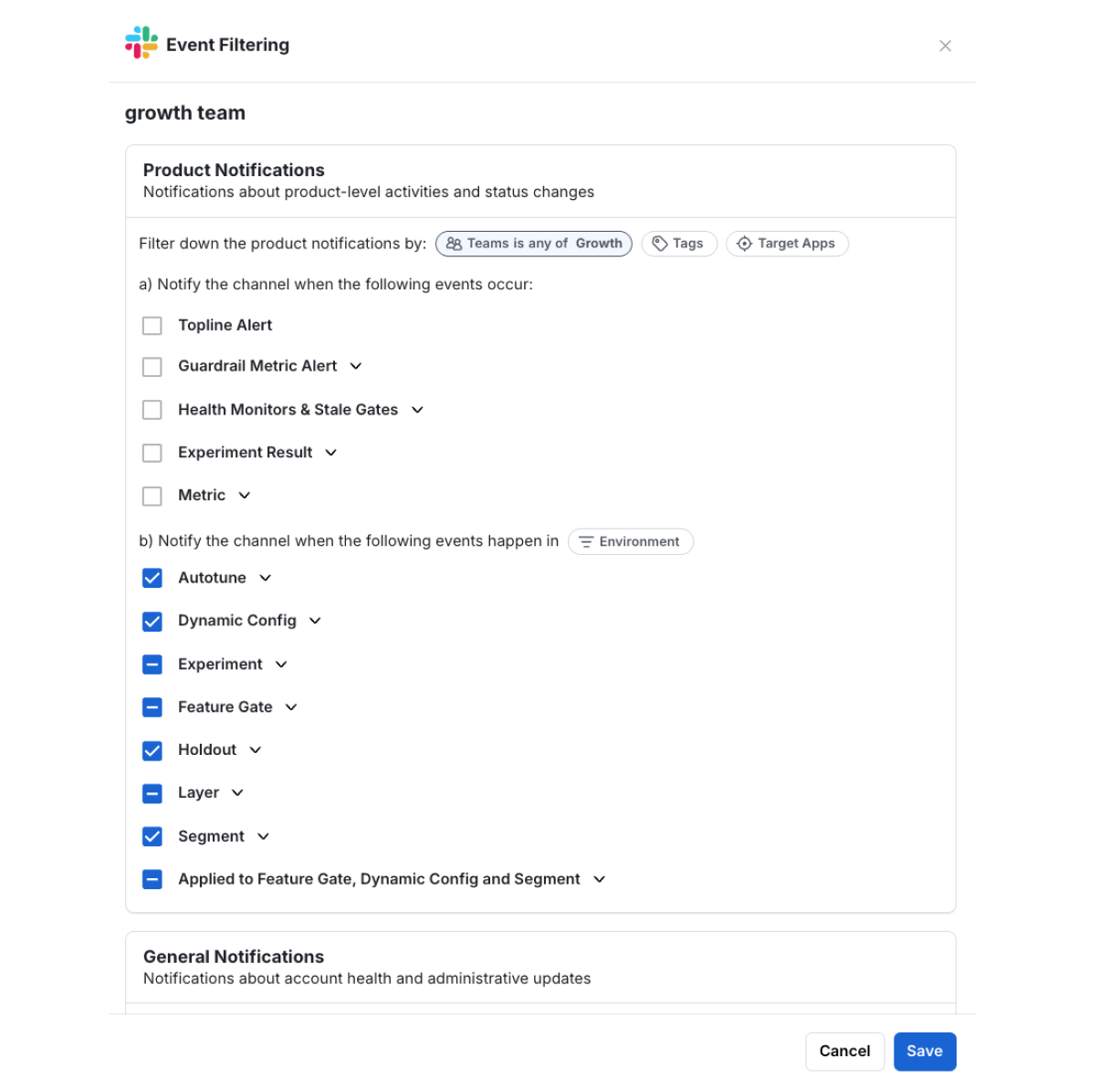
**Step 4:** Filter to the relevant Team, Tags, or Target Apps.
**Step 5:** Choose the notifications about product-level activities and status changes you want to subscribe to.
 ***
## General Notifications
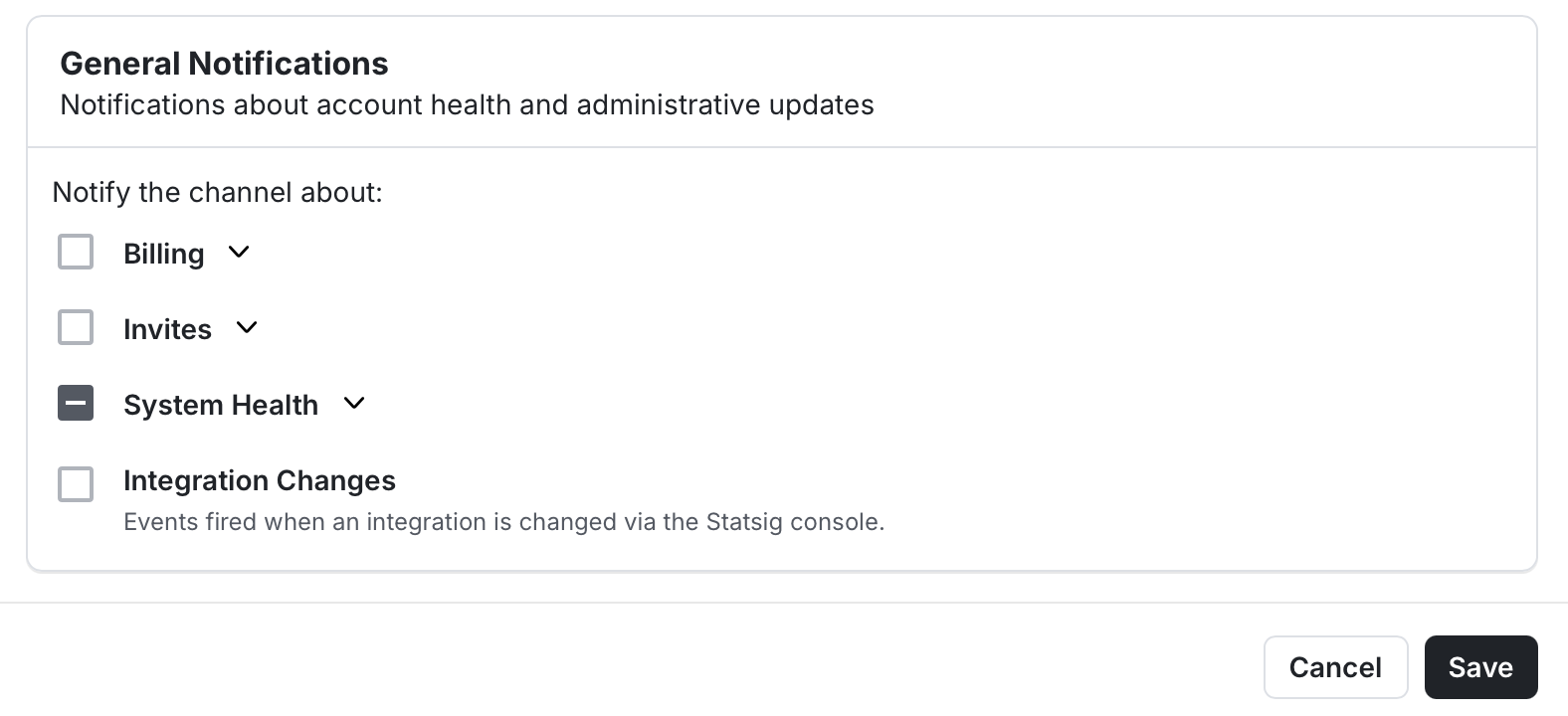
**Step 6:** Choose the notifications about Statsig system status or administrative updates you want to subscribe to.
***
## General Notifications
**Step 6:** Choose the notifications about Statsig system status or administrative updates you want to subscribe to.
 ***
## Personal Notifications
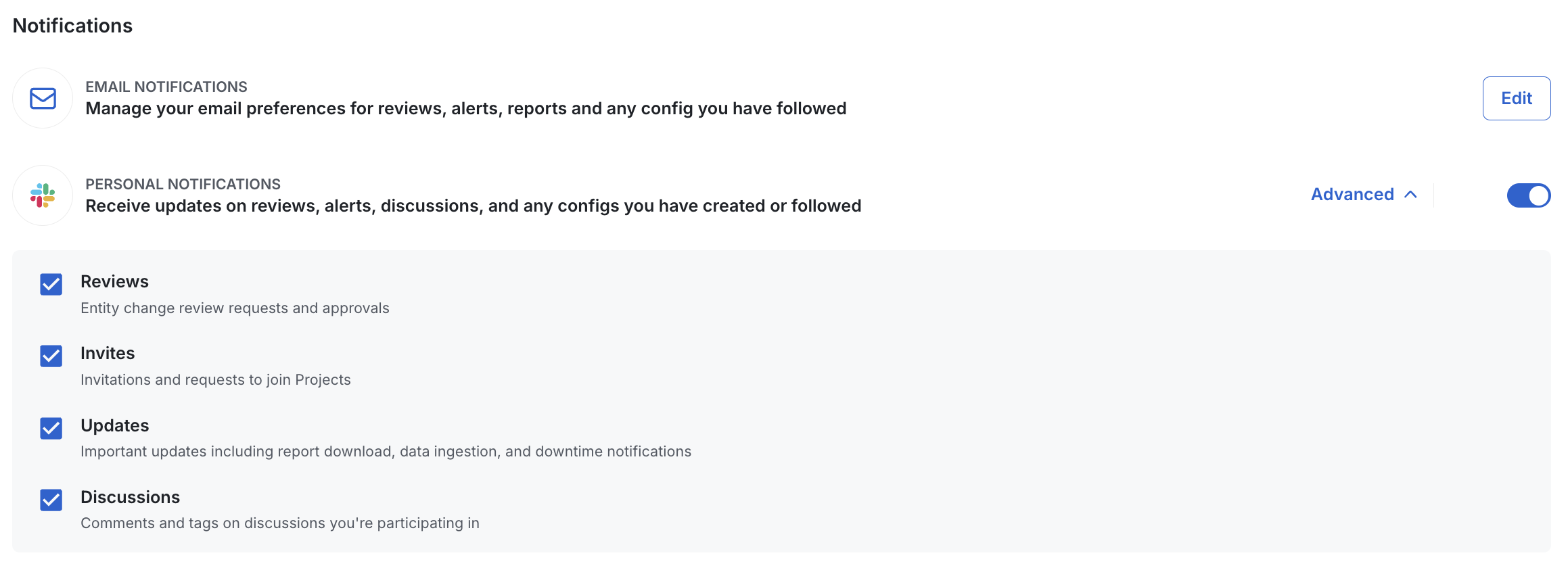
**Step 7:** Go to **Settings** -> **[My Account](https://console.statsig.com/account_settings)** and navigate to Notifications section.
In this page, you can also manage your email preferences for receiving notifications on your email.
***
## Personal Notifications
**Step 7:** Go to **Settings** -> **[My Account](https://console.statsig.com/account_settings)** and navigate to Notifications section.
In this page, you can also manage your email preferences for receiving notifications on your email.